

A product team with a 12‑page brief, a research analyst with a long report and a founder who publishes a weekly newsletter face the same problem: the ideas already exist on the page, but turning them into regular video requires cameras, crews and time they don’t have. With vidBoard you can start from the document, the deck or a URL and produce a narrated, editable video in the browser—no shoot required, no technical install, and everything remains editable after the first draft.
Why experts and specialist brands benefit from faceless video
Many expert-led organisations already keep their knowledge in text: whitepapers, SOPs, research notes, product briefs and presentations. vidBoard is built around that reality: Document → Video, PowerPoint → Video and Link → Video are live capabilities that read source files, preserve facts and turn them into scene-based drafts with narration and visuals. That matters for three practical reasons.
- Scale without production overhead. Converting written assets into video removes the need to schedule shoots or hire freelancers for every item you want to publish. The platform treats AI output as a first draft that sits in an editable canvas, so teams can generate many videos from existing material and polish only what needs polishing.
- Consistency across a library. Brand Kit applies logos, colours and fonts automatically to videos generated from documents, links and decks. For organisations that publish regular commentary or training, this turns branding from a finishing step into a production rule: every video follows the same brand system without repeating manual work.
- Publish without appearing on camera. vidBoard supports AI voiceover, voice cloning, upload-your-own voice recordings, AI avatars and non-voice outputs. If a founder or analyst prefers not to appear on camera, they still get a voiced, professional video (or a silent visual format) that conveys expertise and keeps their workflow focused on content, not cinematography.
Choosing between voice-led, text-led and visual formats
Not every piece of expert content needs the same treatment. vidBoard supports multiple faceless formats; choosing the right one depends on the audience and the channel.
- Voice-led (long-form explainers and lessons). Use AI voiceover or voice cloning when you want spoken nuance and a continuous narrative—course modules, deep-dive explainers or product walkthroughs fit this format. Document → Video and PowerPoint → Video combine to deliver a structured, narrated draft that remains editable: change wording, timing or visuals slide by slide.
- Text-led (social scannability and silent autoplay). For short promos, social Reels or platforms where sound is often off, rely on clean visuals and captions. vidBoard includes an in-house subtitle workflow with editable transcripts, word-level timing and caption translation across roughly 99 languages; subtitles can be burned into the final export so a faceless video still reads clearly without audio.
- Visual-first (data, graphics and punchy promos). When the message is visual—charts, product screenshots, or stat-driven slides—choose a motion template from the ~129 designs, pull stock media from the built‑in libraries, and keep the canvas editable. Three orientations (landscape, portrait, square) are available from one project, so the same asset can be adapted for YouTube and vertical social clips without rebuilding.
Mixing formats is straightforward: a course launch might use voice-led long-form for the lesson, text-led verticals for social promos, and visual-first thumbnails for feeds. vidBoard’s per-slide regenerate and editable timeline let you refine parts of a project without redoing the whole video.
A practical faceless workflow using your existing content
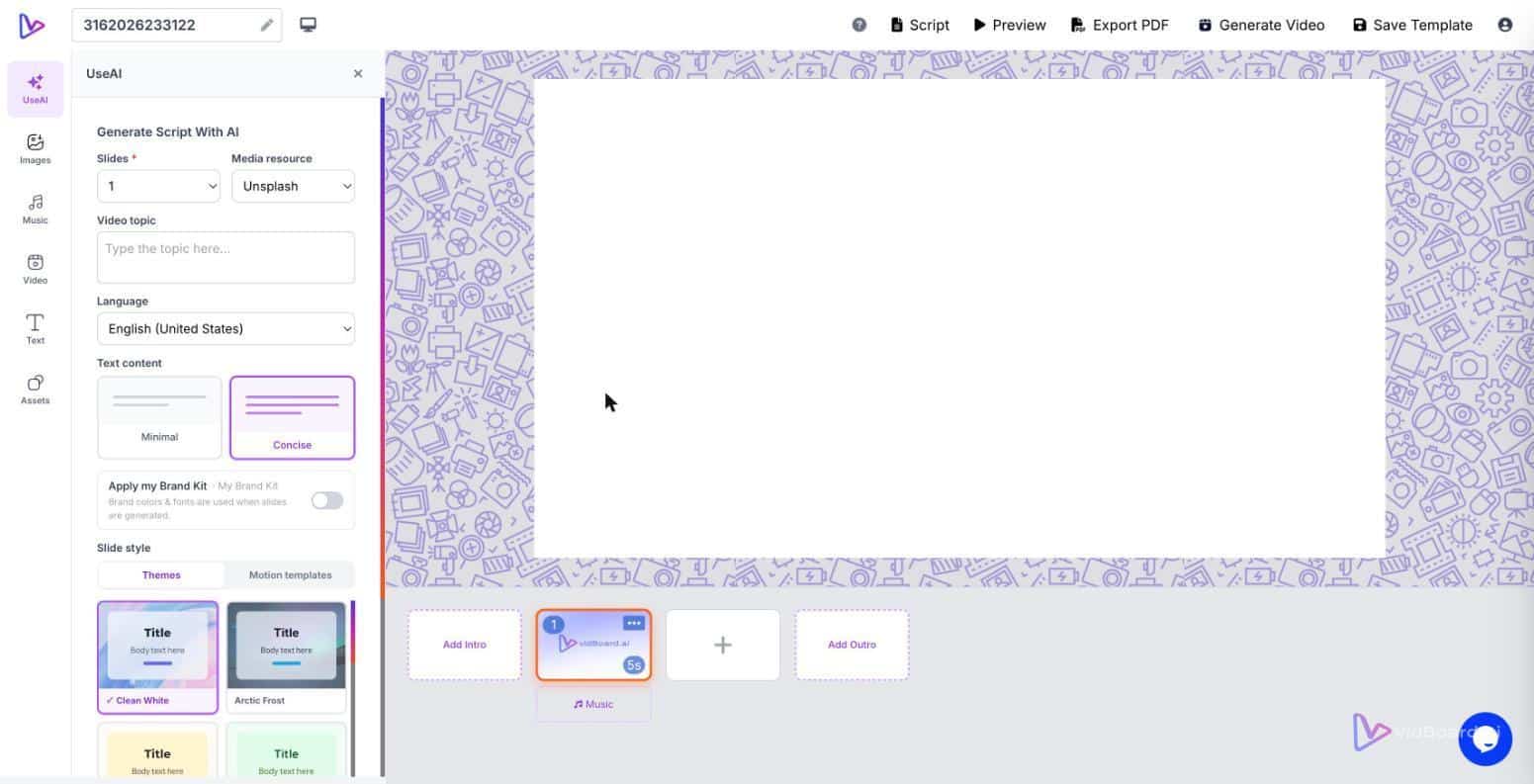
Start from the thing you already have. Upload a PDF, a .pptx or paste a link—vidBoard reads the content, splits it into scenes and generates narration and visuals. From there, work like you would in a slide editor: adjust text, swap images, change timing, apply motion templates and pick a voice.
- Generate the first draft. Use Document → Video, Link → Video or PowerPoint → Video to create an editable master that preserves your original facts and structure.
- Apply brand and voice. Use Brand Kit to enforce colours, fonts and logos, and choose an AI voice or upload a human recording; voice cloning is available when you need consistent narration across a library.
- Add captions and localisation. Auto-transcribe, edit the transcript, and export with burned-in subtitles. For multilingual audiences you can translate captions and use AI dubbing to re-voice finished videos.
- Publish in the formats you need. Export MP4, publish directly to YouTube from the finished video screen, and export project slides as PDF. Produce landscape, portrait and square outputs from the same project so one source becomes multi-channel-ready.
For expert-led brands, the key point is simple: you do not need a camera to publish regular, on-brand video. vidBoard turns the material you already own into editable, narrated content that scales across formats and languages. A creator’s documents already contain the next hundred videos; vidBoard is the system that converts them.