Automatically generate perfectly timed, beautifully styled captions for any video. Boost accessibility, hold attention, and maximize reach across every platform.
Built for every platform and content type
Beautiful, accurate, and always on-brand. AI Captions work automatically so you never waste time syncing text by hand.

No manual alignment, no guessing. vidBoard's AI listens to your video, transcribes speech with high accuracy, and places each caption exactly when it should appear. Edit any line you like before exporting.

Choose from a library of animated caption styles built for social media, corporate videos, and e-learning. Customize fonts, colors, size, and position to match your brand identity exactly.
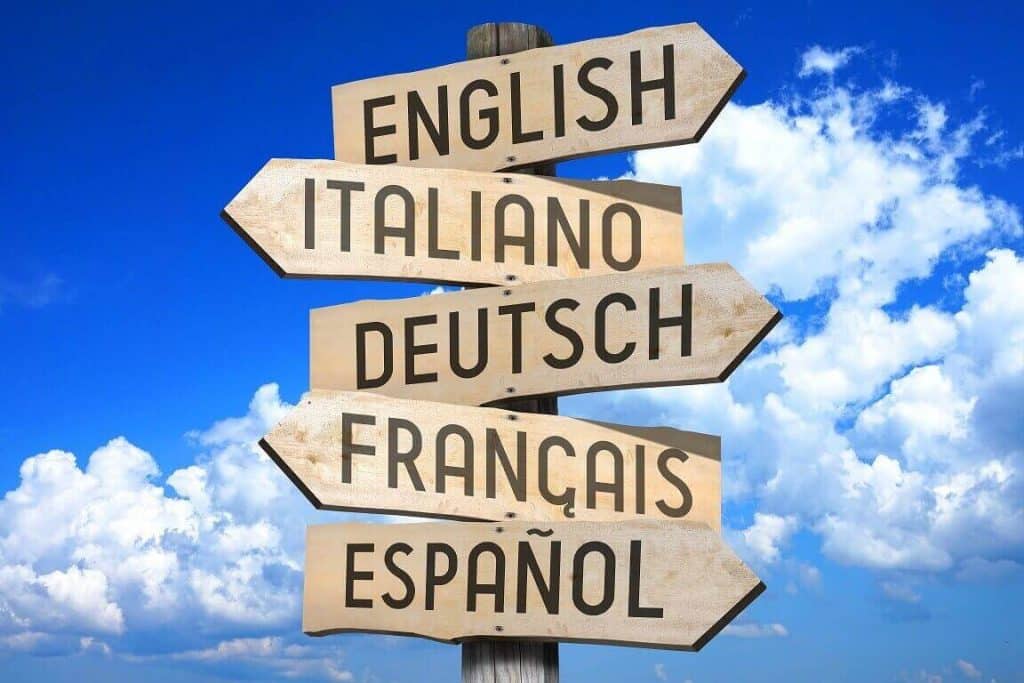
Generate captions in 50+ languages from the same video file. Expand your content to global audiences without creating separate versions. Perfect for international campaigns, courses, and product launches.

Export captions as a standalone SRT or VTT file for YouTube, LinkedIn, or any video platform. Or burn them directly into the video for Instagram, TikTok, and anywhere subtitles need to be embedded.
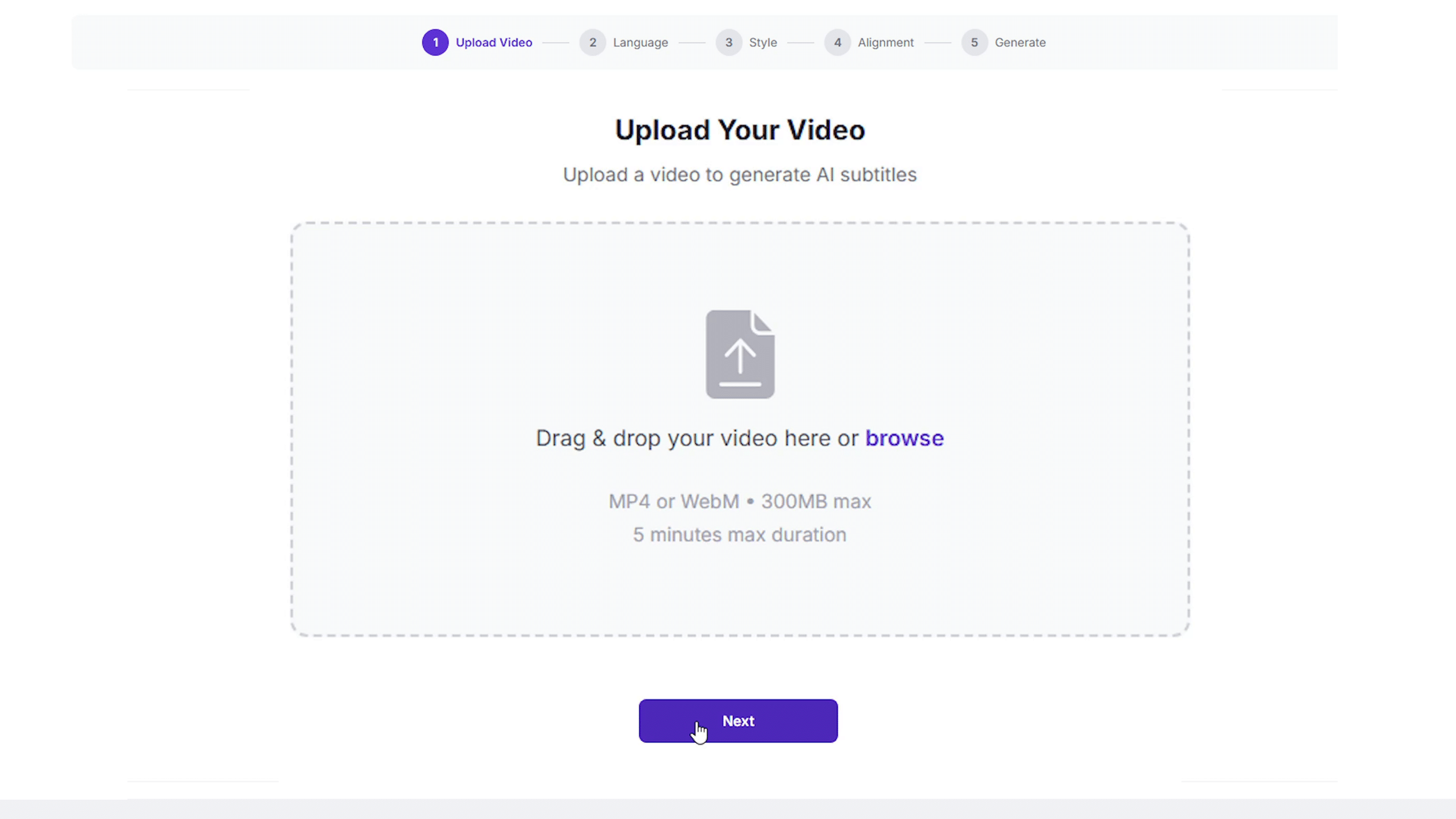
Upload a video file directly or import from your vidBoard project. Any format, any length.
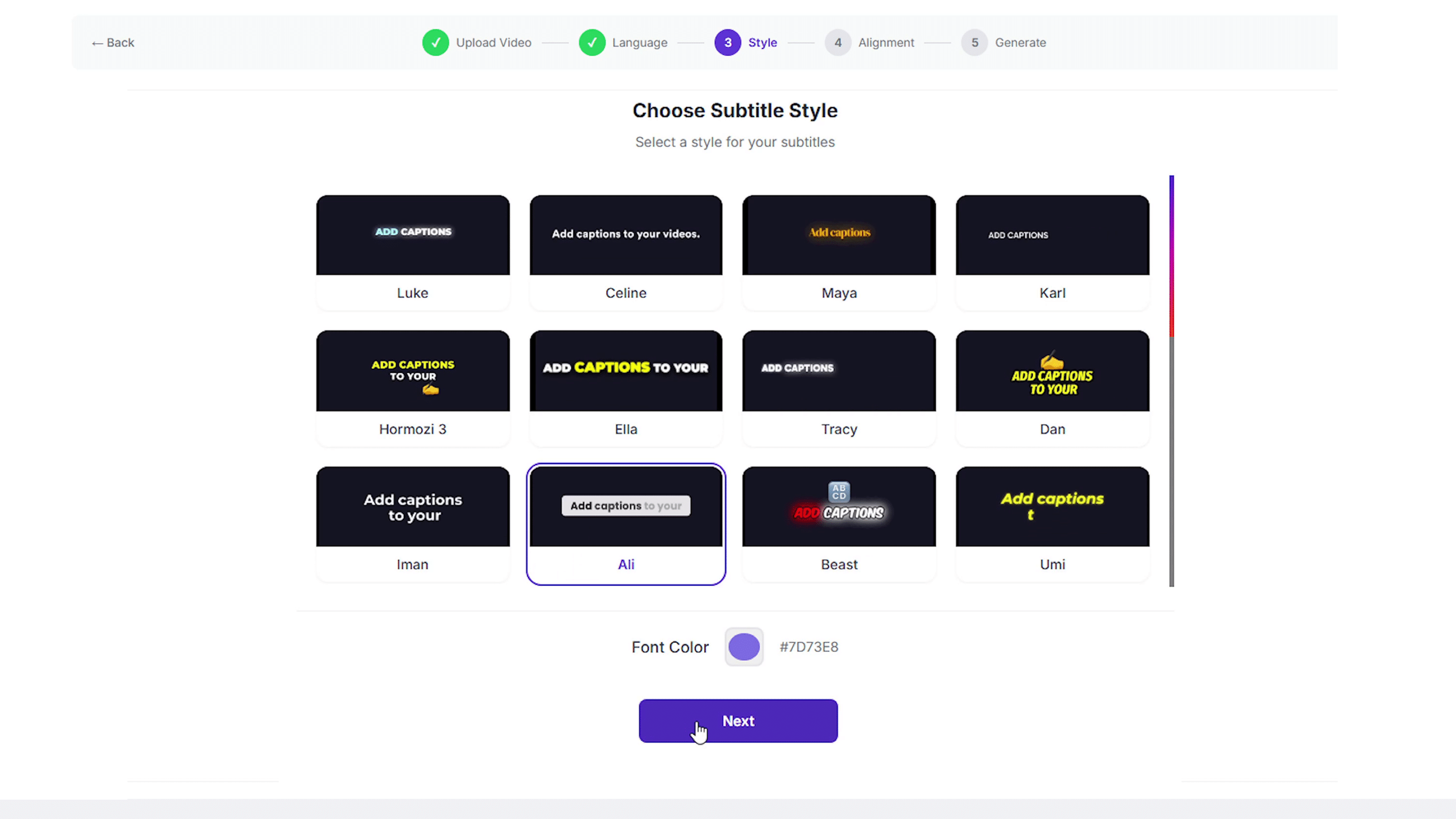
Choose a caption style that fits your brand, select your output language, and let the AI generate your captions instantly.
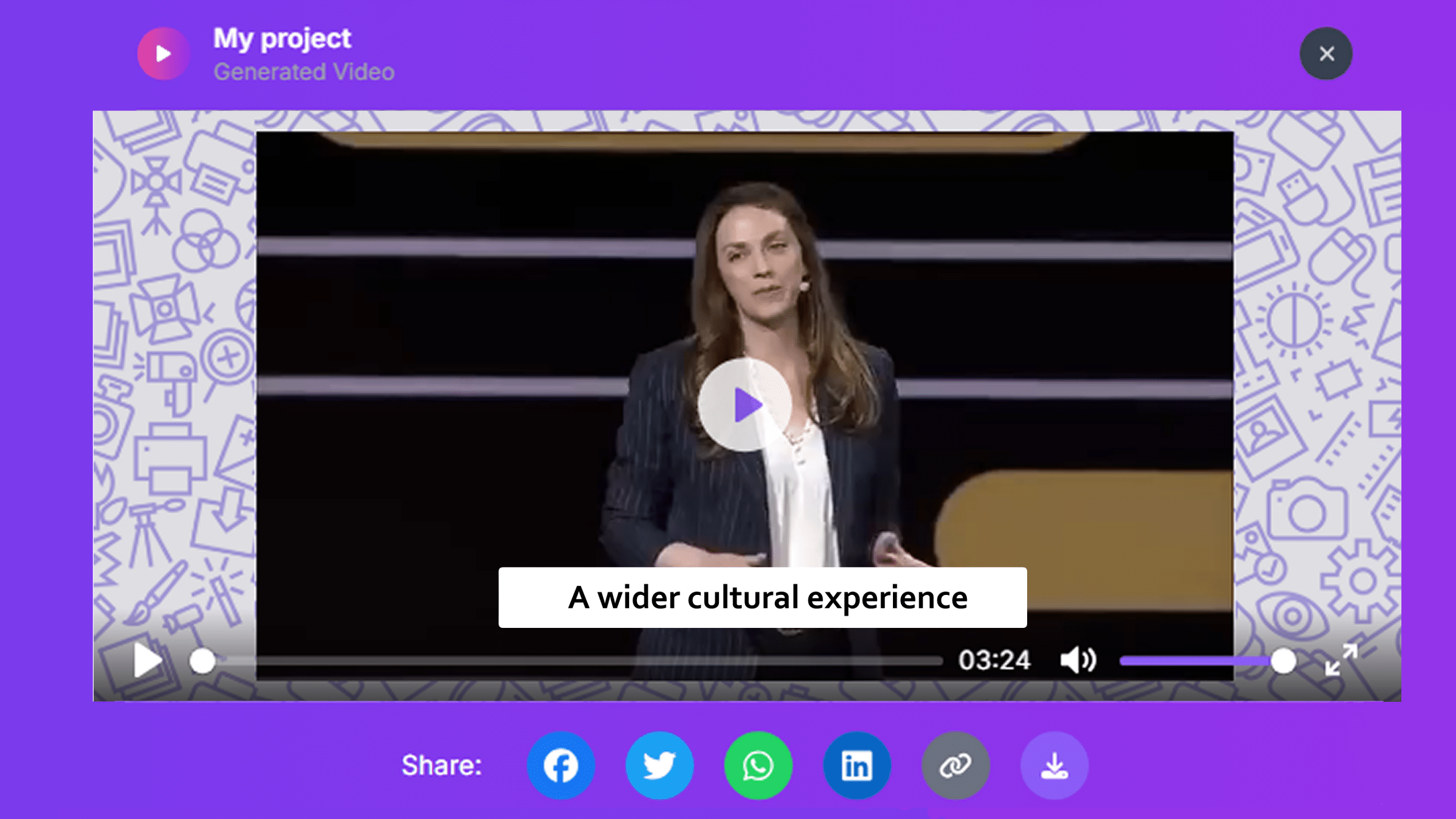
Preview your captions on the timeline, tweak any line you want, then export as a captioned video or a subtitle file.

Keep scrollers watching with animated captions that deliver your message even with sound off on Instagram, TikTok, and Facebook.

Improve comprehension and accessibility in training videos. Captions reinforce spoken content and help diverse learners follow along.

Highlight key selling points and calls-to-action through captions that keep viewers engaged even when they can't listen.
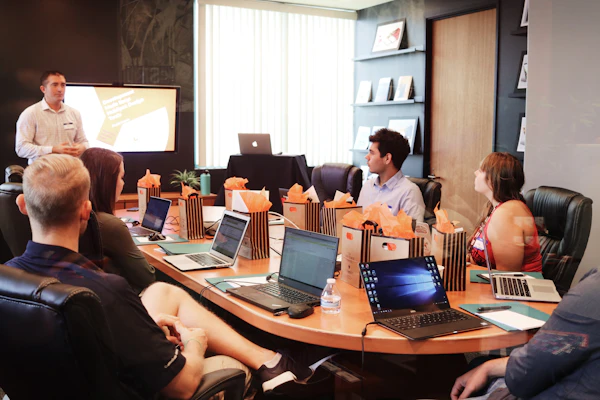
Auto-generate captions in multiple languages from one video. Reach international audiences without creating separate versions.

Everything you need to know before getting started with AI Captions.
vidBoard uses advanced AI speech recognition to deliver high accuracy across most accents and languages. You can always review and edit any line directly in the editor before exporting.
Yes. Choose from a library of pre-built styles or fully customize fonts, colors, size, background, and position on screen so captions match your brand perfectly.
Export captions as SRT or VTT files for upload to YouTube, LinkedIn, or any platform that supports external subtitles. You can also burn captions directly into the video for social platforms like Instagram and TikTok.
Absolutely. AI Captions work seamlessly with vidBoard videos that use AI avatars, AI voices, or any uploaded footage. Just generate captions after your video is assembled and ready to go.
Yes. You can transcribe the audio in its original language and then generate a translated caption track in any of 50+ supported languages, all from the same video without any re-recording.
Add captions to every video you make. Automatically, beautifully, and in any language your audience speaks.