See exactly what you'll use
Real screens from Create Your Digital Twin inside vidBoard, from the first click to the finished file.
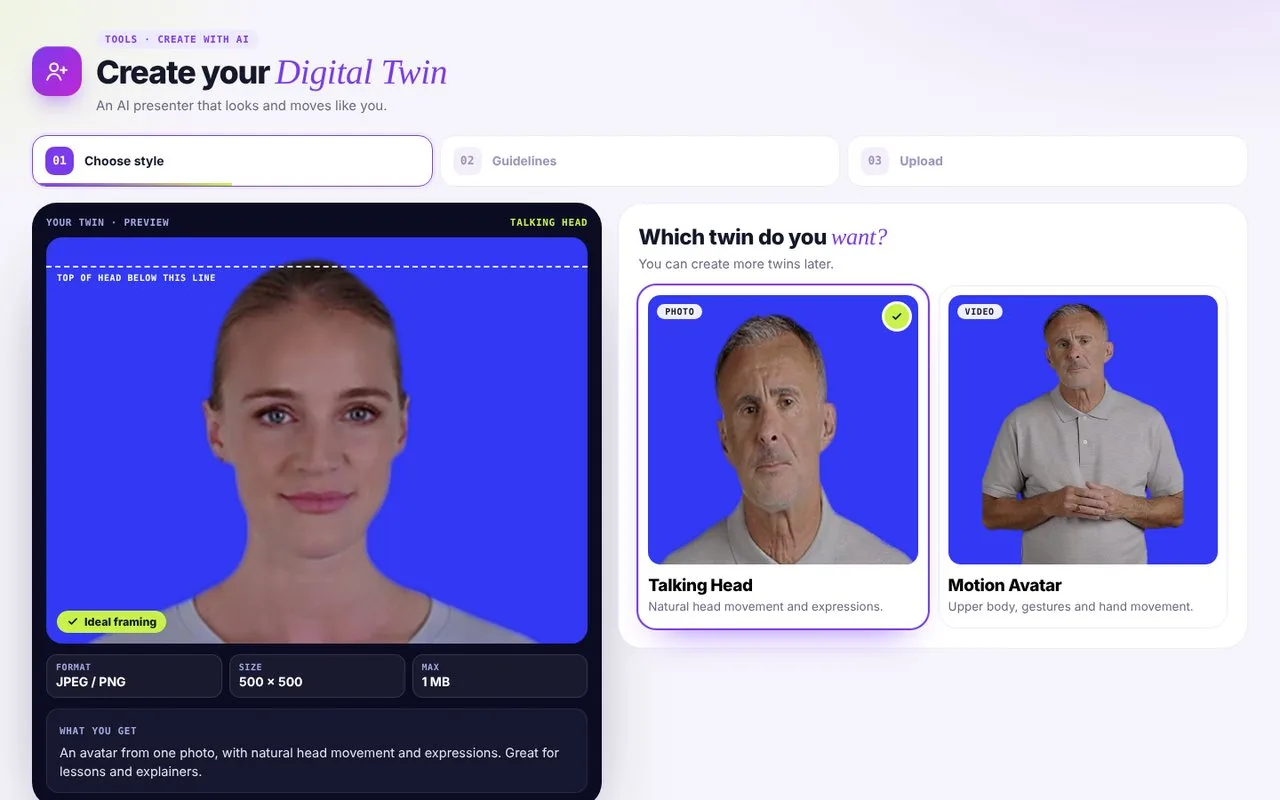 01Choose a style
Talking Head from one photo, or Motion Avatar from a short video.
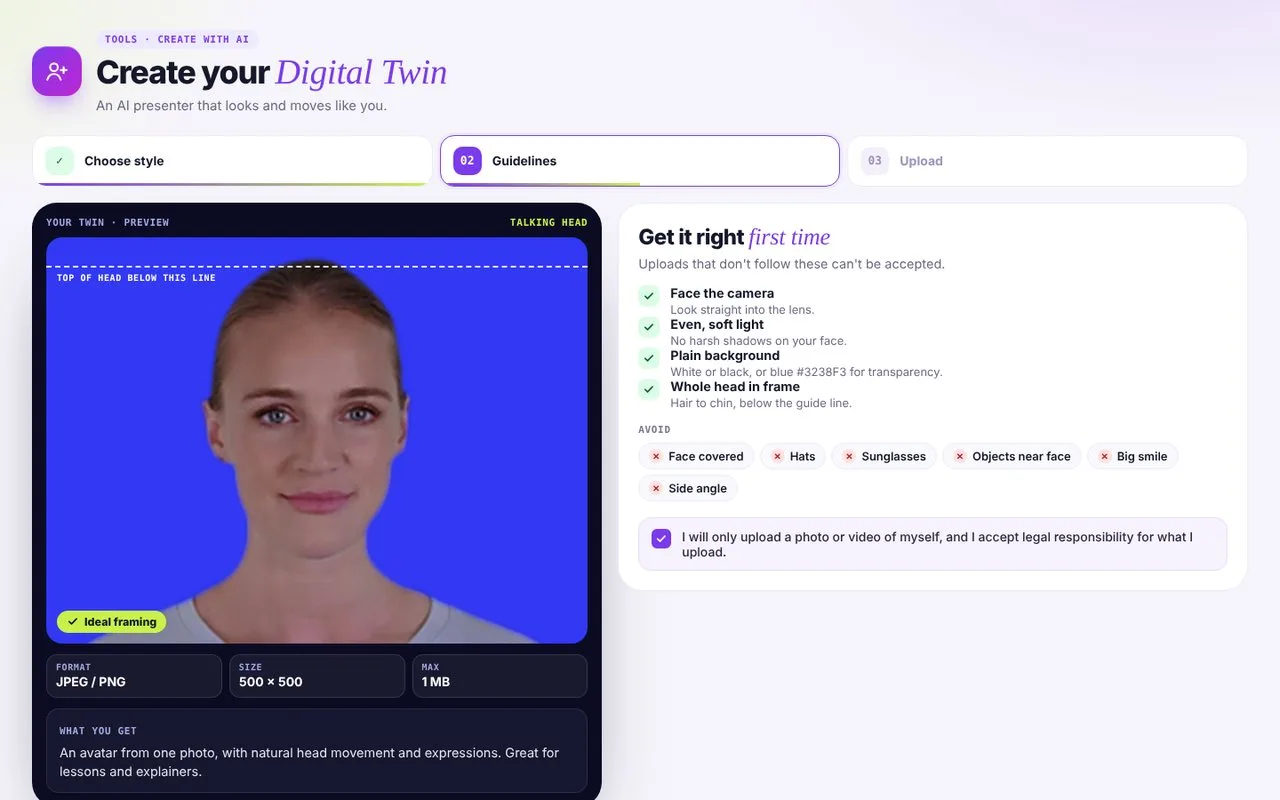 02Follow the guidelines
A short checklist and your consent, so the twin looks right.
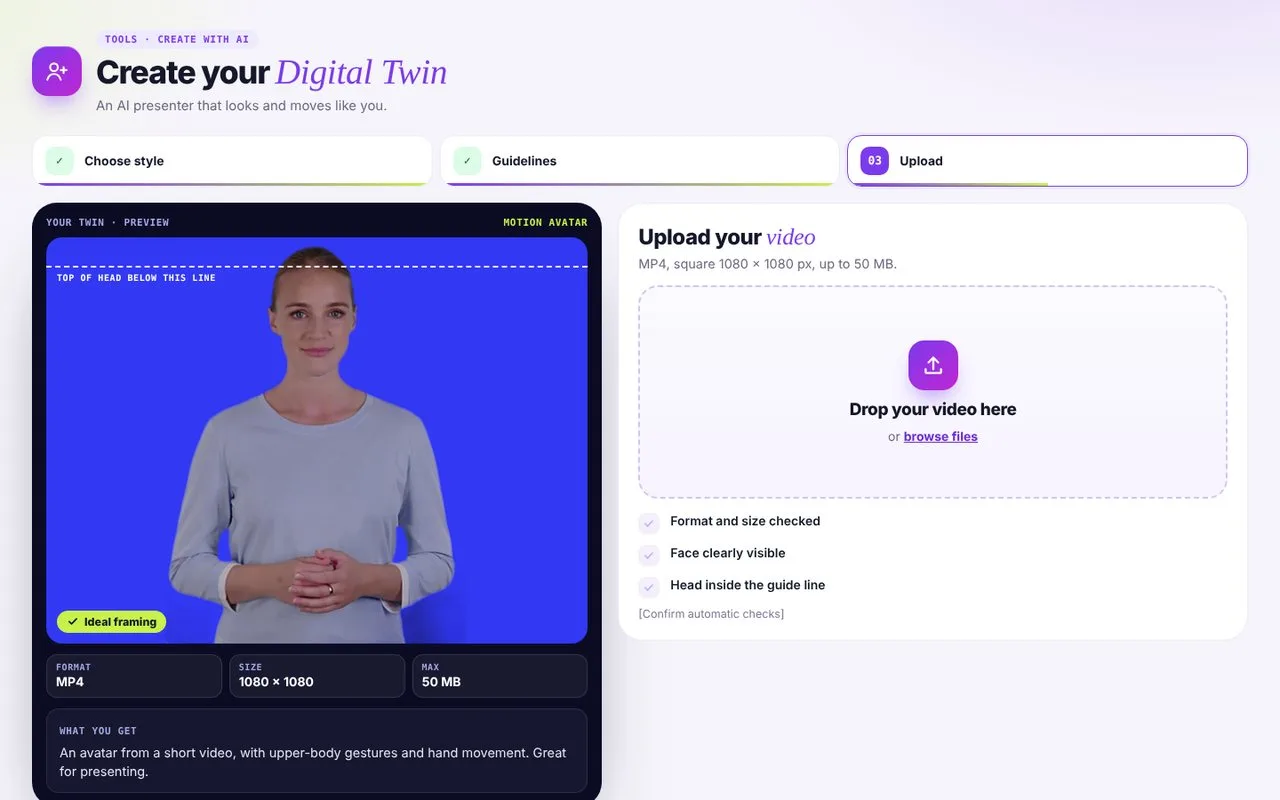 03Upload and create
Checks run on your file before the twin is made.
Two ways to become a twin
Talking Head
Motion Avatar
| Detail | Talking Head | Motion Avatar |
|---|---|---|
| What you upload | One photo | A short video |
| File | JPEG or PNG, 500 × 500 px, up to 1 MB | MP4, 1080 × 1080 px (1:1), up to 50 MB |
| How it moves | Natural head movement and expressions | Upper body, gestures and hand movement |
| Best for | Lessons, explainers, quick updates | Presenting, pitching, on-stage feel |
A better photo makes a better twin
Four simple things make the difference. The tool walks you through each one before you upload.
- 1Face the cameraLook straight into the lens with a neutral expression.
- 2Even lightSoft light on your face, no harsh shadows.
- 3Plain backgroundWhite, black, or blue for a transparent background.
- 4Nothing in the wayNo hats, sunglasses or objects near your face.
Your likeness, your consent
Everyone who creates a twin confirms they have the rights and consent for the photo or video they upload, and accepts responsibility for it.
Digital Twin questions
What do I need to upload?
Talking Head (photo): a JPEG or PNG, 500 × 500 px, up to 1 MB. Face the camera with soft, even light, a plain white, black or blue (#3238F3) background and your whole head in frame. Avoid face coverings, hats, sunglasses, objects near your face, wide smiles and side angles.
Motion Avatar (video): an MP4, 1080 × 1080 px, up to 50 MB, longer than 30 seconds and no longer than 59 seconds. Frame yourself from the waist to the top of your hair, face the camera, keep your face neutral and lips closed, and move your hands naturally. Wear plain clothes without logos or prints, and avoid blue and brown. Use a plain white, black or blue (#3238F3) background. On blue, orange, yellow and bright green clothes work better than blue, cyan or dark grey.
How long does it take to create my twin?
It depends on the type of twin, the material you upload and how busy processing is. vidBoard shows the status while your twin is being created. There is no guaranteed completion time.
Can I make more than one twin? Does it use up videos from my pack?
Yes, within the limits of your pack. Creator includes one Digital twin and Pro Studio includes two. Creating or replacing a twin doesn't use any videos from your pack. The videos you render count against your pack as usual.
Can I re-record or improve my twin later?
You can create another twin if your pack has a free slot. If you've reached your limit, email admin@vidboard.ai. The team reviews removing an existing twin case by case, so you can create a replacement.
Can my twin speak languages I don't speak?
Yes, where a supported language and voice are available in vidBoard. Your twin presents the script with generated narration and lip-sync. Language support depends on the voice and model you choose, so not every cloned voice speaks every language.
Can I change my twin's outfit, background or framing?
Your source photo or video sets your twin's appearance. In the editor you can change the scene and background around your twin. Changing its clothes or original framing isn't guaranteed and may need new source material.
Who can access my twin? Can my team use it?
Your twin belongs to your vidBoard account. Authorised vidBoard staff may review avatar submissions for quality and approval.
Is my data used to train AI models?
No. vidBoard doesn't use your uploaded images, videos, voice or other content to train AI models, and doesn't sell it to third parties. The photos and videos you submit are used to create your twin and for quality checks, never for model training. vidBoard may use contracted technology providers to process your requests, under its agreements with them.
How do I delete my twin, and what happens to my photos and videos?
Email admin@vidboard.ai to delete your twin, cloned voice or account. vidBoard removes the relevant assets, including with its contracted processing providers where needed. Generated audio and rendered videos follow the retention period in your plan or vidBoard's policies.
Where is my data stored?
vidBoard processes and stores customer content in the US West region. Generated audio and rendered videos are kept only for the period stated in your plan or vidBoard's policies.
Can I create a twin of someone else?
Only if you have all the rights, permissions and consents needed. You're responsible for every photo and video you upload, including any that shows another person, and you must not upload material you aren't authorised to use. vidBoard may flag third-party or public-figure material during creation and approval.
How do you stop someone from creating a twin of me without permission?
Everyone who creates a twin must have permission for the face and voice they upload. As an extra safeguard, vidBoard may flag suspicious third-party or public-figure content during creation and approval. These checks can't catch every unauthorised upload, so if you suspect misuse of your likeness, report it to admin@vidboard.ai.
Can I use my twin in commercial videos?
Yes. You have full rights to the videos you create with vidBoard, within your plan and vidBoard's Terms. You remain responsible for having the rights to what you upload, and for permission to use any third-party likeness, recording, music or image.
What happens to my twin if I stop using vidBoard?
Your twin stays in your vidBoard account. Whether you can keep creating videos depends on your plan. To delete your twin, cloned voice or account, email admin@vidboard.ai.