


So, you’ve got a bunch of documents, PDFs, and even some useful web links lying around. Instead of just letting them gather digital dust, what if you could turn them into training videos? It sounds like a lot of work, right? You might be thinking about cameras, editing software, and maybe even hiring a crew. But what if I told you there’s a simpler way, especially if you’re working with a learning management system? We’re going to look at how to take that existing content and make it into training videos without all the usual hassle.
Key Takeaways
- You can turn existing documents, PDFs, and URLs into training videos for your learning management systems using AI tools.
- AI can handle narration, structure, and visuals, so you don’t need filming or editing skills.
- Keep your training consistent by applying branding, a set narration style, and using templates.
- Make videos more engaging with highlights, quizzes, and by breaking them into smaller chunks.
- Distribute your videos through your learning management system, track how people use them, and make improvements based on the data.
Selecting Content Sources for Training Video Creation
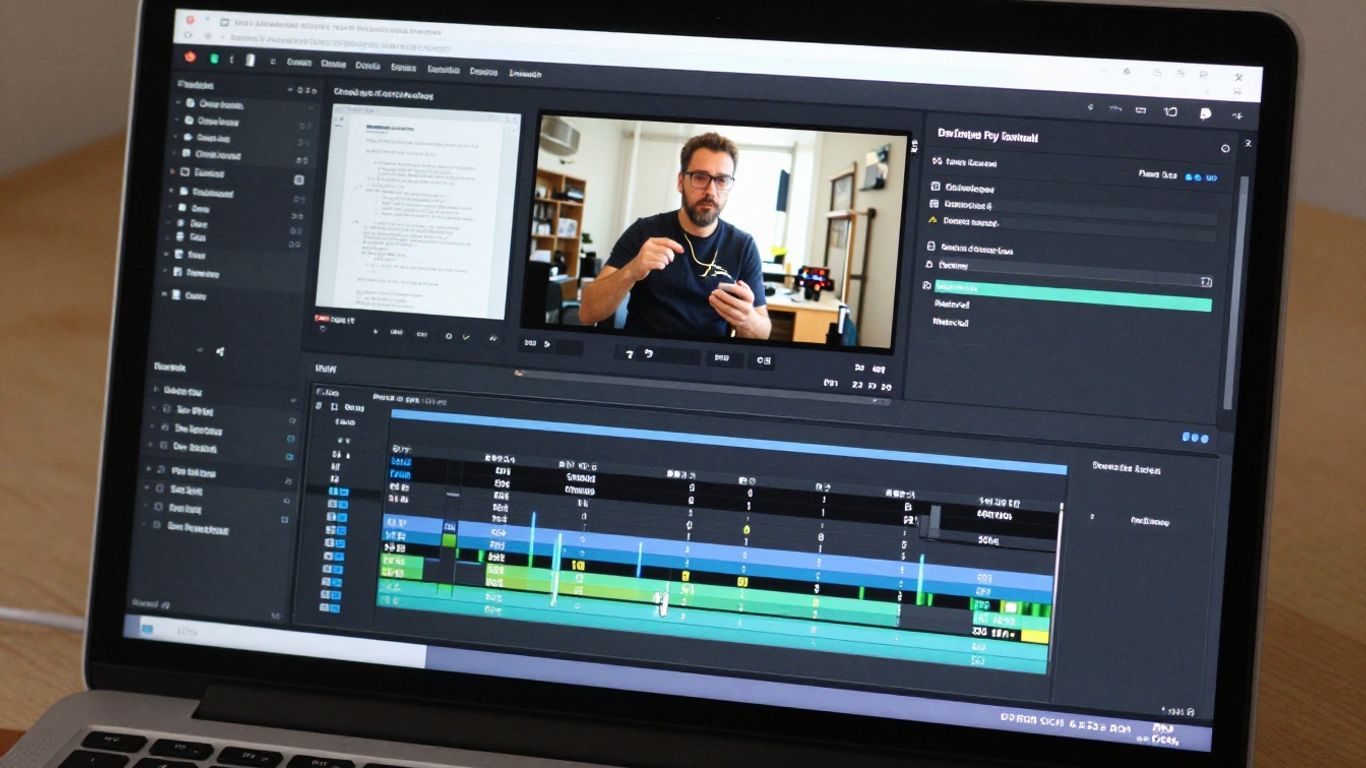
When you’re looking to turn your existing documents and web links into training videos for your Learning Management System (LMS), the first step is figuring out what material you’ll actually use. It’s not just about grabbing any old file; you need to pick things that will make sense as a video lesson. Think about what your team needs to learn and what information is already available in a format that can be adapted.
Identifying Effective Docs and PDFs for Learning Management Systems
Not all documents are created equal when it comes to video conversion. You want materials that are clear, well-organized, and contain information that benefits from a visual or auditory explanation. Things like standard operating procedures (SOPs), policy documents, user manuals, or even detailed guides can work well. The key is to look for content that has distinct steps, processes, or concepts that can be broken down into digestible video segments. PDFs, especially interactive ones, can be a good starting point because they often have a structured layout. The goal is to find content that already tells a story or explains a process logically.
Leveraging Internal and Public URLs for Video Material
Web links can be a goldmine for training content. Think about your company’s internal wiki, knowledge base articles, or even well-written blog posts that explain industry concepts. Publicly available resources can also be useful, provided they are reputable and relevant to your training needs. Tools exist that can take the text from a URL and automatically build a video script. This is a fast way to get content into a video format without much manual typing. You can turn content from web pages into instructor-led videos quite easily.
Ensuring Content Relevance and Compliance
Before you commit to turning a document or URL into a video, take a moment to check if it’s still accurate and relevant. Outdated information is worse than no information. Also, if your industry has specific compliance rules, make sure the content you choose aligns with them. You don’t want to create a training video that inadvertently teaches incorrect or non-compliant procedures. It’s a good idea to have a subject matter expert give the source material a quick once-over to confirm its accuracy and compliance status.
Here’s a quick checklist:
- Is the information up-to-date?
- Does it clearly explain a process or concept?
- Is it free of jargon or overly technical language?
- Does it meet any compliance requirements?
- Can it be easily broken down into short video segments?
Transforming Documents and URLs Into Video Lessons
So, you’ve got all this great information locked away in documents, PDFs, and scattered across the web. The next logical step is turning that into engaging video content for your LMS. It sounds like a big job, right? But honestly, it’s gotten a lot easier lately, especially with some smart tools available.
Using AI Tools to Convert Text-Based Materials
This is where things get interesting. Instead of you or your team spending hours recording yourselves or hiring actors, AI can do a lot of the heavy lifting. You can take a Word doc, a PDF guide, or even a webpage and feed it into an AI system. The AI then reads through the content, figures out the key points, and structures it into a video format. It can even generate a voiceover, often sounding quite natural. This means you can go from a static document to a dynamic video lesson in a fraction of the time it used to take. Think about turning a 50-page employee handbook into a series of short, digestible training modules. It’s a game-changer for getting information out quickly and consistently. Tools like Synthesia are designed for this exact purpose, allowing you to transform various documents into video lessons that help learners remember things better.
Maintaining Structure and Learning Objectives
When you’re converting content, it’s easy to lose the original flow or miss the main point. The goal isn’t just to make a video; it’s to make a training video. This means the structure needs to make sense for learning. AI tools can help here by identifying headings, subheadings, and bullet points to create a logical sequence. You’ll want to make sure the AI is picking up on the core learning objectives you had in mind for the original document. If a PDF was meant to teach someone a specific process, the video needs to walk them through that process step-by-step. It’s about keeping the educational purpose front and center.
Here’s a quick look at how the process often works:
- Input: Paste your URL or upload your document (PDF, DOCX, etc.).
- AI Processing: The system analyzes the text, identifies key information, and generates a script and visuals.
- Review & Edit: You can then tweak the script, adjust the pacing, or change the AI presenter.
- Export: Finally, you export the video, ready to be uploaded to your LMS.
Optimizing Visual and Audio Elements for Clarity
Just having a voiceover and some text on screen isn’t always enough. To make the video effective, you need to think about how it looks and sounds. This involves choosing an AI presenter that fits your company’s style – maybe someone professional and straightforward, or perhaps more friendly. The visuals should support what’s being said. If the document talks about a specific step in a software program, the video should ideally show that step, perhaps with screen recordings or clear graphics. Audio quality is also super important. A tinny or robotic voiceover can be distracting. Most AI tools offer different voice options and languages, so you can pick something clear and easy to listen to. The aim is to make the information as easy to absorb as possible, reducing any friction for the learner.
When you’re converting content, think about what the learner needs to see and hear. Don’t just show text on a screen if a visual demonstration would be much clearer. The combination of good audio, relevant visuals, and a well-structured script is what makes these AI-generated videos truly work for training purposes.
Incorporating Branding and Standardization in Video Training
Building a recognizable and consistent look across all your training videos isn’t just about aesthetics—it’s also about helping learners know what to expect. Every video should reflect your organization’s unique style, from the way it sounds to the way it looks. Here’s how you can get that right.
Applying Consistent Narration and Visual Identity
Consistency in narration and visuals helps learners connect each video to your broader training program. To keep things smooth:
- Pick a single narrator voice or AI style for all your training videos.
- Set standard colors, logos, and fonts that appear in intros, outros, and title cards.
- Create simple rules for showing things like callouts, highlights, or emphasis.
| Branding Element | Standard to Apply | Example |
|---|---|---|
| Narration Voice | Single, steady voice | Same narrator or AI |
| Logo Placement | Top right corner always | Company logo visible |
| Font | Sans-serif, 16pt | Arial or Open Sans |
| Highlight Color | Company brand yellow | Use for important terms |
Sometimes, the small stuff—like steady intros and matching fonts—makes training feel familiar and polished, even if the content changes a lot.
Aligning Video Lessons With Organizational Guidelines
It’s important to follow company policies and compliance rules. If your organization has specific learning standards, make sure every video checks those boxes. Steps might include:
- Reviewing your brand handbook or guidelines before starting production.
- Setting up a checklist to cover required policies or standards in each lesson.
- Including disclaimer slides or safety reminders when needed.
Utilizing Templates for Cohesive Course Libraries
Templates are your friend here:
- Use video templates that lock in title formats, color schemes, and transitions.
- Prepare slide or script templates for different lesson types (e.g., intro, procedure, scenario).
- Share these templates with everyone making or updating videos.
This way, anyone can make a new video and stick to the script—literally and visually. It keeps your course library neat, and learners won’t get distracted by changes in style or layout from lesson to lesson.
Enhancing Engagement and Knowledge Retention
Making training videos that people actually pay attention to and remember is the goal, right? It’s not just about getting the information out there; it’s about making sure it sticks. We want our learners to not just watch, but to truly absorb and be able to use what they’ve learned. This means we need to think about how we present the material to keep them interested and help their brains hold onto the important bits.
Highlighting Key Terms and Steps in Videos
One simple way to keep eyes on the screen and minds engaged is to visually point out what’s important. Think about it like a teacher underlining words in a book or circling them on a whiteboard. When key terms, action steps, or critical policy details pop up on screen, it gives learners a clear signal: ‘This is important, pay attention here.’ This can be done with simple text overlays, color changes, or even subtle animations that draw the eye without being distracting. This visual reinforcement helps learners focus on the high-value information without needing constant re-watching.
Integrating Quizzes and Interactive Scenarios
Passive watching can lead to passive learning. To combat this, try adding quick checks for understanding right within the video. These don’t have to be full-blown tests. A simple multiple-choice question after explaining a concept, or a ‘what would you do next?’ scenario can make a big difference. These interactive moments break up the video and prompt learners to actively think about the material. It’s like a mini-challenge that helps solidify what they just saw.
Here’s a quick look at how interactive elements can help:
- Immediate Feedback: Learners know right away if they understood correctly.
- Active Recall: Forces the brain to retrieve information, which is a powerful way to learn.
- Application Practice: Scenarios let learners try out their knowledge in a safe, simulated environment.
Adapting Content for Microlearning Formats
Let’s be honest, long videos can be a drag. People have short attention spans, especially when they’re trying to fit training into a busy workday. Breaking down larger topics into smaller, bite-sized video chunks – often called microlearning – can be a game-changer. Each short video can focus on a single concept or task. This makes the information easier to digest and remember. Plus, learners can quickly find and re-watch specific bits of information when they need them, without having to scrub through a lengthy video.
Breaking down complex topics into smaller, focused video modules makes information more digestible and easier to recall. This approach respects the learner’s time and attention, leading to better knowledge retention and application in their daily tasks.
Adapting Videos for Global Learners in Learning Management Systems

Making your training videos work for everyone, no matter where they are or what language they speak, is a big deal. It’s not just about translating words; it’s about making sure the message lands right for different cultures and learning styles. When you’re building out your LMS content, thinking globally from the start saves a lot of headaches later.
Adding Subtitles and Multi-Language Support
This is probably the most direct way to reach a wider audience. Most modern video tools can help with this. You can often auto-generate subtitles and then have them translated. It’s good to have a human look them over, though, because direct translations don’t always capture the right tone or meaning.
- Auto-generate captions: Start with the software’s built-in tools.
- Translate captions: Use translation services or internal staff who know the language.
- Review and edit: Check for accuracy, cultural appropriateness, and natural flow.
- Offer multiple subtitle tracks: Allow learners to select their preferred language.
Beyond just subtitles, some platforms let you generate entirely new audio tracks in different languages. This is more involved but offers a much more immersive experience for learners who aren’t comfortable reading subtitles.
The goal is to make the learning experience feel as natural and accessible as possible for each individual user, removing language as a barrier to knowledge acquisition.
Customizing Delivery for Different Audiences
Think about who you’re training. A new hire in sales might need different examples or a different pace than an experienced engineer in manufacturing. You can tailor videos by:
- Adjusting examples: Use scenarios relevant to specific regions or job roles.
- Modifying pacing: Slow down for complex topics or speed up for review material.
- Changing visual cues: Ensure graphics and icons are universally understood or localized.
Sometimes, this means creating slightly different versions of a video. For instance, a video for the European market might use different currency symbols or date formats than one for the US market. It takes a bit more effort upfront, but it makes the training much more effective.
Ensuring Accessibility Across Devices
People learn on all sorts of devices these days – desktops, laptops, tablets, and phones. Your videos need to look and sound good on all of them. This means:
- Responsive design: Make sure videos scale correctly without distortion.
- Clear audio: Use good microphones and ensure sound levels are consistent.
- Readable text: Choose fonts and sizes that are easy to see on smaller screens.
- Keyboard navigation: If your LMS has interactive elements, make sure they can be used without a mouse.
Consider that some learners might have visual or hearing impairments. Providing transcripts alongside videos and ensuring good color contrast in any on-screen text helps a lot. It’s about making sure everyone has a fair shot at learning the material, regardless of their situation or the tech they have available.
Publishing and Distributing Training Videos Effectively
Getting your training videos into the hands of learners is its own process. Once you’ve built your content, you’ll need to think about where it will live, who can see it, and how people interact with it. Distribution isn’t just about uploading a file—it’s about making the training easy to find, use, and track, so here’s how to approach it step-by-step.
Exporting to SCORM and LMS Platforms
If your organization uses a Learning Management System (LMS), you’ll likely need to export your videos in a format like SCORM, xAPI, or as a basic MP4. SCORM files allow for tracking learner progress, quiz scores, and completion.
- Export the video from your editor, selecting SCORM or MP4 depending on your LMS requirements.
- Upload to your LMS, tagging the course with clear titles, descriptions, and any metadata required.
- Test the playback and completion tracking before rolling out to employees.
Making sure your videos work with your LMS is key for both tracking learning and keeping everything organized.
Choosing Between Internal, Public, and Controlled Sharing
There’s no single right answer for how open you should make your videos. Each method has different strengths, so it’s worth weighing your options for each project.
| Distribution Method | Where to Use It | Access Control | Pros | Cons |
|---|---|---|---|---|
| Internal LMS | Onboarding, compliance, training | Restricted, tracked | Privacy, analytics, updates | Limited reach |
| Public Platforms | Marketing, public tutorials | Open | Broader access, SEO benefits | No analytics, less control |
| Controlled Links | Partner/Customer training, pilots | Password/unlisted link | Simple share, some analytics | Less secure if links spread |
- Internal LMS keeps everything private and supports analytics.
- Public platforms like YouTube are great if you want the widest possible access.
- Controlled or unlisted links offer a quick way to share without opening everything up to the whole world.
Integrating Videos Into Learning Management Systems
Getting your videos integrated into the LMS takes more than a simple upload. You want to build an experience where training is easy to follow and track.
- Organize your videos into modules or playlists that match your training curriculum.
- Use built-in LMS features to add quizzes, assignments, or certificates.
- Communicate with learners about where to find new modules and how to report issues.
Publishing and distributing your training videos is all about finding the balance between privacy and reach, while ensuring your learners can actually find and watch the material. It’s not just about uploading files; it’s about setting people up for success.
Measuring Training Video Effectiveness and Iterating
It’s easy to put training videos out there and hope for the best, but honestly, that’s never a good idea. If you want your learning program to actually help people, you’ve got to track how your videos are doing and make changes when things aren’t landing. Let’s break this into a few main areas.
Analyzing Viewer Engagement and Completion Rates
You learn a lot just by watching the numbers. Some key metrics to focus on include:
- Average Watch Time: Are people making it to the end or dropping off early?
- Completion Rate: What percent of viewers finish the whole lesson?
- Drop-off Points: Where does interest drop? Are there common spots where viewers stop watching?
Here’s a quick example table to lay it out:
| Video Title | Avg. Watch Time | Completion Rate | Top Drop-off Point |
|---|---|---|---|
| Safety Basics | 9:35 | 82% | 2:45 |
| Product Update | 5:12 | 49% | 3:08 |
| Compliance 101 | 10:20 | 67% | 4:57 |
Sometimes, seeing where everyone bails is honestly more helpful than a high completion rate—those spots are clues for what’s boring, confusing, or just not useful.
Tracking Knowledge Application Post-Training
Just because someone finishes a video doesn’t mean they got it. A few ways to tell if learning actually happened:
- Short Quizzes: Embed a few questions at the end or throughout the video.
- On-the-Job Checks: Compare performance metrics before and after training.
- Applied Tasks: Ask learners to perform a task and submit proof, like a screenshot or short report.
Refining Content Based on Feedback and Analytics
All those numbers and reviews need to lead somewhere. Here’s how you can use them:
- Edit sections with high drop-off rates. Cut out fluff or break long sections into smaller videos.
- Clarify confusing points. If you get a lot of repeat questions on one topic, rewrite or re-record that part.
- Update for new procedures. Outdated content wastes time. Set reminders to review videos every quarter or after big process changes.
Getting into the habit of tweaking small things after each feedback round means you never have to do massive overhauls.
If you keep tracking, asking, and fixing, your training videos won’t just sit there collecting dust—they’ll keep helping people learn, every time they hit play.
Wrapping It Up
So, there you have it. Turning your existing documents and web links into training videos for your LMS doesn’t have to be a huge headache. You can skip the expensive cameras and complicated editing software. By using the right tools, you can take that pile of PDFs or those internal wikis and make them into clear, easy-to-follow video lessons. It’s a smart way to get your training out there consistently, especially if you have teams spread out or need to update information often. Give it a try; you might be surprised how simple it can be to get your content into a video format that works for your learners.
Frequently Asked Questions
Can I turn my existing documents and web pages into training videos?
Yes, you can easily change your current documents, PDFs, and web pages into training videos. Tools powered by AI can read your files or URLs and create instructor-led videos that are ready to use in your learning management system (LMS).
Do I need to know how to make videos or have special equipment?
No, you do not need to be a video expert or own fancy equipment. The video creation tools do all the hard work for you. They add narration, captions, and visuals automatically, so you can focus on the content, not on filming or editing.
How can I make sure my training videos match our company’s style?
You can use templates and branding options to keep your videos looking and sounding the same. This means you can add your logo, use your company’s colors, and pick a narration style that fits your organization’s guidelines.
Can I add quizzes or interactive parts to my training videos?
Yes, many tools let you add quizzes, questions, or even small scenarios right inside the video. This helps keep learners interested and checks if they understand the material.
Is it possible to make videos for people who speak different languages or need subtitles?
Absolutely! You can add subtitles and pick from many languages, so your training videos can be watched and understood by teams around the world. This also helps people who are deaf or hard of hearing.
What’s the best way to share my training videos with my team?
You can export your videos to your LMS, share them on your company’s intranet, or use special links for controlled access. Some tools also let you track who watched the videos and see how well they did on quizzes.