


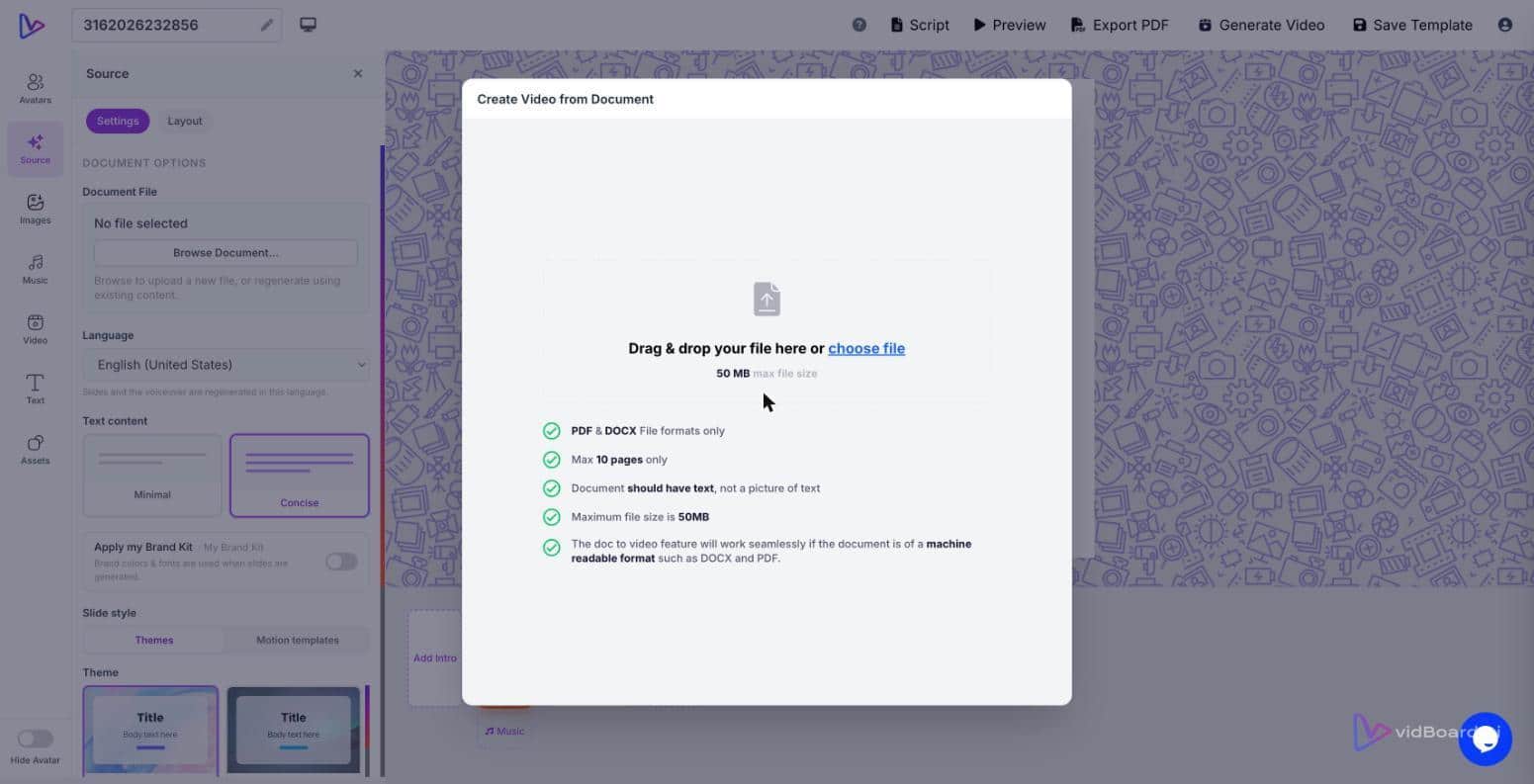
Take the 12‑page proposal your team just finished: upload the Word file or the PowerPoint into vidBoard and the system will build a narrated, branded video draft that preserves the proposal’s facts, names and numbers. That draft arrives in a fully editable canvas — each slide, block of narration and visual element remains yours to tweak — so a single upload becomes the starting point for one-off pitches, account playbooks and a library of reusable sales content.
Why convert proposals into video, not just PDFs
Proposals are already structured stories: problem, solution, scope, proof points and next steps. Converting that material into video does three concrete things that matter to sales teams.
- Makes content consumable. Buyers and internal stakeholders digest short, narrated visuals faster than long documents. vidBoard turns your existing slides or document into a narrated sequence so reviewers can watch key points instead of paging through attachments.
- Keeps a single source of truth. vidBoard reads your real document content — it honours the names, figures and claims in the file rather than inventing them — and produces an editable draft. That preserves legal and technical accuracy while giving you a format that’s easier to share.
- Multiplies output without extra writing. One project can output landscape, portrait and square variations; captions, translated subtitles and dubbed audio; plus short clips for social. That turns one proposal into a set of deliverables for different audiences and channels without rewriting the pitch.
A practical workflow inside vidBoard
Use the built-in content-to-video paths that ship with vidBoard and follow a few simple steps to create both account-specific and reusable assets:
- Start with the source. Upload the proposal document or .pptx. Document → Video and PowerPoint → Video are live features that parse your file into editable slides and draft narration, preserving the document’s facts and structure.
- Apply Brand Kit and a template. Select a motion template or an imported presentation layout from the template library and apply your Brand Kit so colours, fonts and logo are consistent across every generated scene. Templates auto‑fill to your topic and carry matched motion and music where appropriate.
- Choose narration and presenter style. Pick an AI voice from the multi‑language library or upload a human recording. If you want a consistent instructor across many proposals, use voice cloning (available on Creator and Pro Studio plans) or an avatar for presenter‑led delivery. All narration choices remain editable after generation.
- Edit selectively, don’t rebuild. Treat the AI output as a first draft: change text, swap visuals, adjust timing or regenerate a single slide you don’t like. Per‑slide regenerate lets you fix one scene without losing manual edits elsewhere in the project.
- Localise and output formats. Add AI Subtitles, translate captions, or create dubbed audio for other markets. Export as MP4, publish directly to YouTube from the finished‑video screen, or export project slides as PDF for internal review copies. Produce three aspect ratios from the same project to cover web, mobile and social.
Note on access: Document → Video and Brand Kit‑applied generation begin at the Creator plan. If you need multi‑language dubbing or a custom digital twin, those capabilities are part of the Pro Studio tier.
Three reuse patterns that scale inside a sales organisation
Turning proposals into videos gives you repeatable patterns that save time and make collateral more effective. Here are three practical ways to reuse the same source material.
- Account‑specific walkthroughs. Take a base proposal and produce a tailored version for each strategic account. Change a few slides — win themes, case studies, pricing — regenerate only those scenes, and export an MP4 to send to the buyer or to embed in a sales enablement portal. Keeping the Brand Kit consistent ensures every variant stays on message.
- Sector or product variants. Use one master deck to generate sector‑specific videos: swap visuals and language for finance, healthcare or retail audiences and regenerate the affected slides. The template library reduces design work, so reps can produce client‑facing assets without a designer on the critical path.
- Training and onboarding reels. Convert a capability presentation or case study into short training modules for new reps. Use an avatar or cloned voice for a consistent instructor persona, add captions for accessibility, and export landscape videos for LMS integration or vertical clips for quick mobile reviews.
Each pattern leverages the same capabilities: content ingestion (document or PPT), editable canvas, Brand Kit, voice options, per‑slide regeneration, and multi‑format export. That combination turns a one‑off proposal into a small production factory that supports prospecting, enablement and localisation without blowing up your content calendar.