Precise production control without a professional timeline
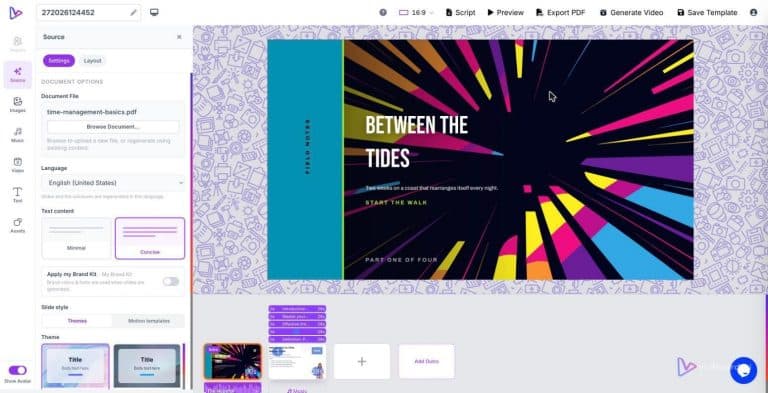
Open a PowerPoint or drop a PDF into the vidBoard editor and the platform turns each slide into an editable scene. You do not land on a blank timeline: you see the objects you recognise — headlines, images, icons — and you can set when each one appears, how long it stays, and how it leaves. That object-level timing is the production control most teams actually need, delivered in a familiar slide-style canvas rather than a complex non-linear editor.
Why object timing gives you real production control
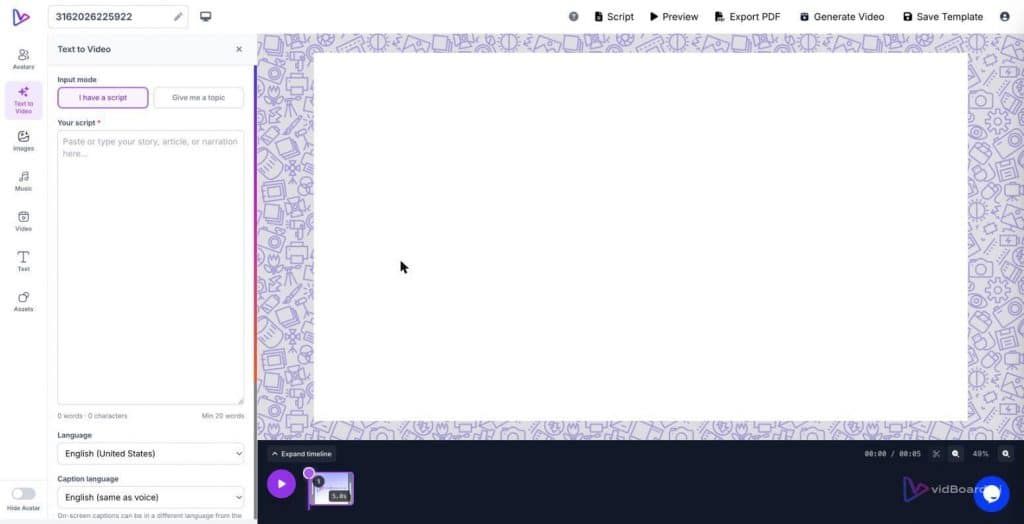
Traditional video editors get their power from a full-track timeline, but they also demand a professional workflow: tracks, keyframes, nested clips. vidBoard takes a different route. The editor exposes a timeline for each object so you can control entrance, duration and exit without wrestling with multiple layers. That means you can pace narration and visuals precisely — for example, have an image drift in while the AI voiceover introduces a concept, keep a statistic on screen for the full line of narration, then fade it out as the next point begins — all by adjusting the object’s timing on the slide.
This per-object approach preserves the ways teams think about slides while giving them frame-accurate control where it matters. It is production control aimed at the point of impact: when a viewer reads a headline, when an icon appears to support a sentence, when a caption needs to hold long enough for comprehension. You get the same outcomes editors aim for — matched pacing, clear emphasis, thoughtful transitions — without moving your workflow into a professional timeline tool.
How the editor keeps timing accessible
Accessibility comes from two design choices that are already live in vidBoard.
- Slide-style canvas with per-object timing: Users work on a slide-like canvas (drag, resize, align, snap) and can still set exact on/off times for any object on a simple timeline. This keeps the mental model close to presentation software while adding the timing controls you need for video pacing.
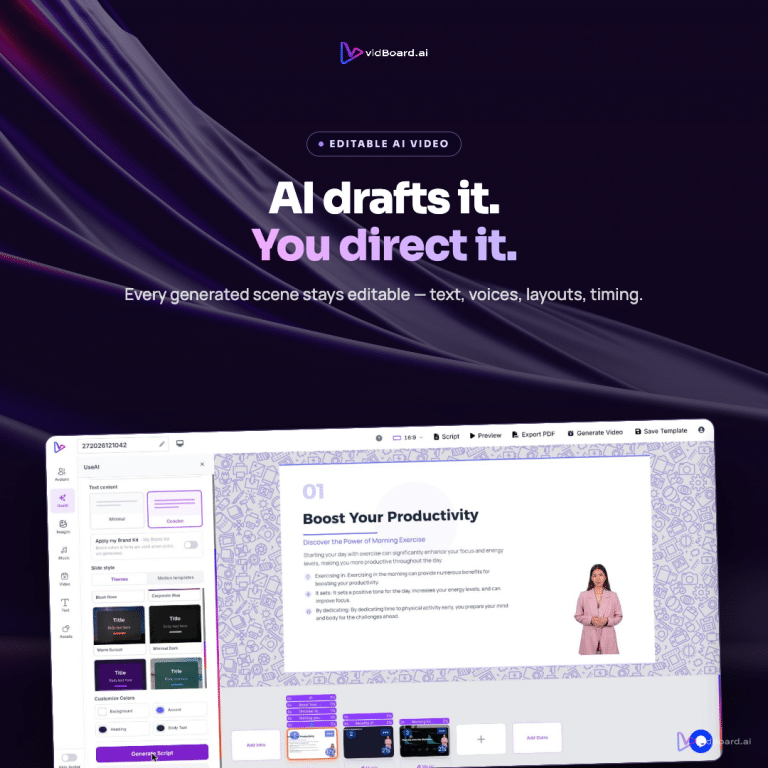
- Edit like a slide editor, not like a DAW: The platform treats the AI output as a first draft; editing is optional and the editor works like a simple slide editor rather than a professional timeline. That means teams who are comfortable with decks or slide tools can translate those skills directly to video production.
Together these features reduce friction. Multi-select and group edits allow you to shift several objects’ timings at once; undo/redo and canvas zoom make experimentation low-cost; per-slide regenerate lets you re-run AI for one scene without rebuilding the whole project. Those are the sorts of controls that let non-editors iterate quickly while still achieving cinematic pacing.
Motion and timing: practical knobs that change the result
Timing alone is not the whole story. vidBoard pairs object timing with entrance/exit animations and continuous motion options so you can craft readable, dynamic scenes without keyframing. The editor supports entrance and exit animations, and continuous motion types such as float, drift, pulse and Ken Burns. Use timing to coordinate these motions with narration: a headline can have a brief entrance while an icon pulses to highlight a data point, or a background image can slowly Ken Burns across the screen during a voiceover to add motion without distracting from the message.
Because templates and a design system govern typographic and spacing choices, you do not need to design motion from scratch. Choose a motion template, AI-fill the content, then adjust per-object timing to align visuals and narration. Brand Kit applies your colours and fonts automatically, so pacing and motion become part of a consistent, repeatable production rule rather than a one-off creative exercise.
What this means for common workflows
Bring real examples into view: course conversion, article-to-explainer, and social promos all benefit.
- E‑learning modules: Upload a deck or document and let vidBoard generate a narrated draft. Then use object timing so each bullet or visual appears in sync with the narration — no timeline expertise required, but tight pacing guaranteed because each object has its own timing controls.
- Article-to-video: With Link → Video, visuals extracted from the source can be timed to match the AI-written narration. Entrance and exit controls let you emphasise quotes or figures at the exact moment they are spoken.
- Social clips from one project: Create a master in landscape, then adjust per-slide timings and layout for portrait and square outputs. Because layouts adapt per orientation rather than cropping, timing remains the primary tool to shape viewer attention across formats.
These workflows show the practical upside: you keep the speed of slide-based authoring while gaining control over rhythm and emphasis. Teams can produce consistent, branded outputs without retraining editors or buying specialist software.
Object-level timing is not a lesser form of control; it is the right form for content-first production. By focusing timing on the elements that carry meaning — headlines, visuals, captions and voice — vidBoard gives you the levers that determine viewer experience, without imposing the complexity of a pro timeline. The result: clearer pacing, consistent branding, and a workflow that scales from one course module to a hundred videos.